Create YouTube Shorts on PC: Desktop Upload Guide
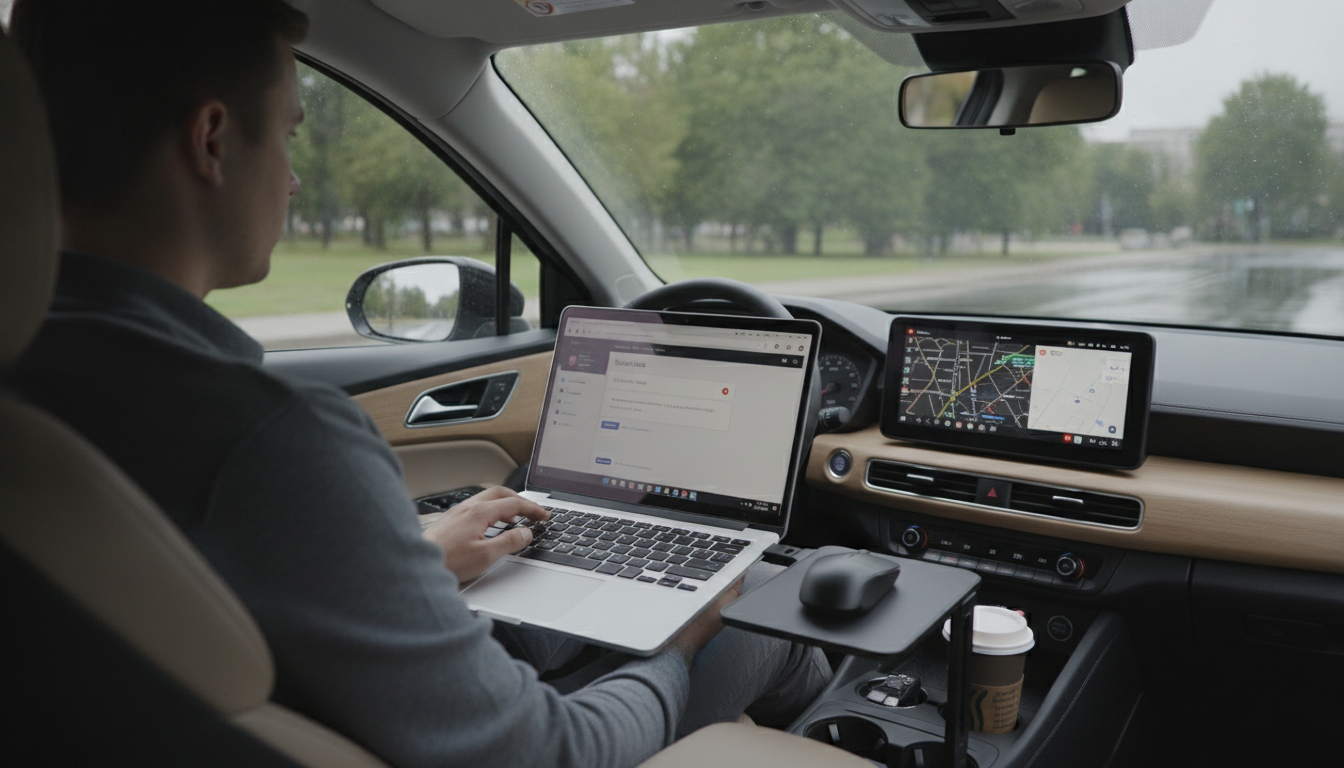
How to create Shorts on YouTube PC
You can create and upload YouTube Shorts from a PC using YouTube Studio—no phone required. The main requirement is that your video is vertical (9:16) or square, and 60 seconds or less. Once uploaded, YouTube will categorize it as a Short when it matches those specs.
Step-by-step: make a Short on desktop
1) Prepare your video file. Export as MP4 (H.264 is common), keep it under 60 seconds, and aim for 1080×1920 (vertical) so it fills the screen on mobile.
2) Open YouTube Studio. Go to studio.youtube.com and sign in to the channel you want to publish from.
3) Start an upload. Click Create (camera icon) > Upload videos, then drag and drop your file.
4) Add the essentials. Enter a title, description, and select an audience setting (for example, whether it’s made for kids). If YouTube offers a thumbnail picker for Shorts, choose the best frame; many Shorts show a frame automatically on mobile.
5) Choose visibility and publish. Set it to Public, Unlisted, or Private. You can also schedule a time. Finish the upload and publish.
How to improve Short performance from the start
On desktop, the upload is only half the job. Strong Shorts usually open with a clear hook in the first second, keep the pacing tight, and end quickly once the point lands. For a practical system on hooks, retention, and getting more subscribers, see this YouTube Shorts growth guide.
For Create YouTube Shorts on PC: Desktop Upload Guide, the best answer depends on fit, material, care instructions, and how the product will be used day to day.
Checking those details first helps avoid a poor match and keeps the choice practical after delivery.
FAQ
Why does my video upload as a regular YouTube video instead of a Short?
This usually happens when the video is longer than 60 seconds or isn’t in a Short-friendly format (vertical/square). Re-export to 9:16 (or 1:1) and keep the duration at 60 seconds or less, then upload again.
















Leave a comment